
New

Pussycat – WARDOGS

From 3.99$
🔥 7sold in last 12 hours
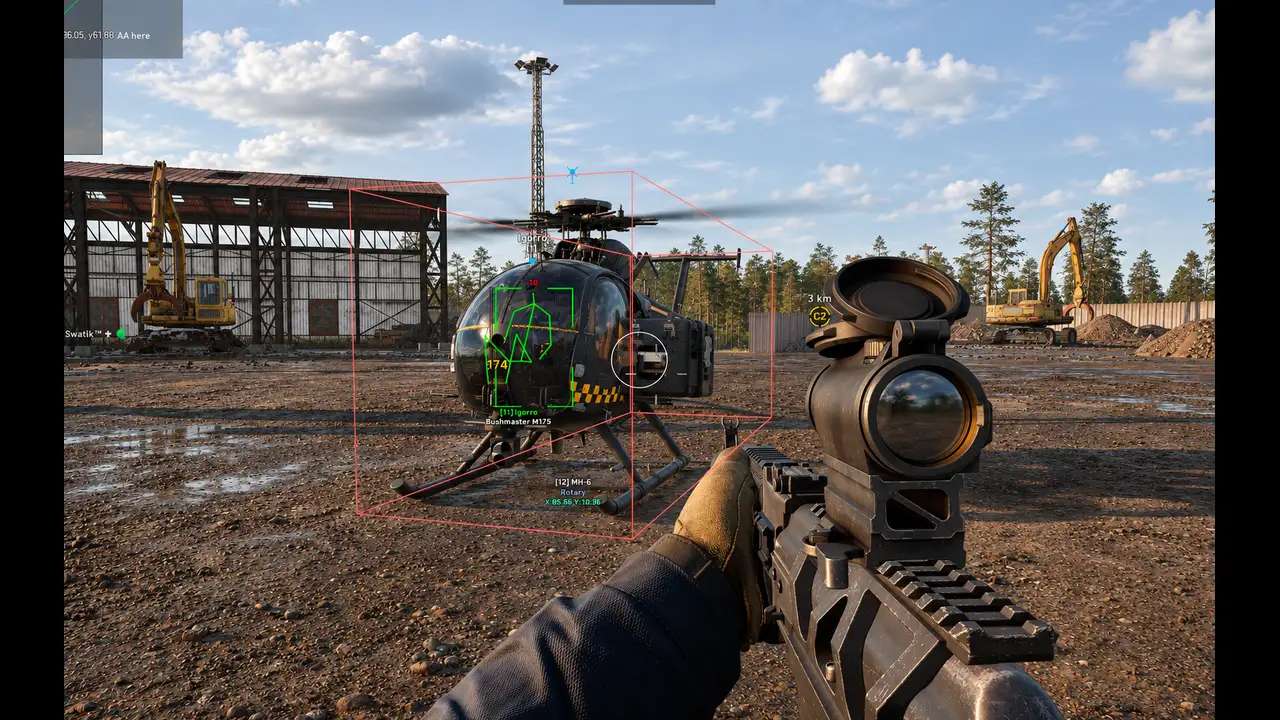
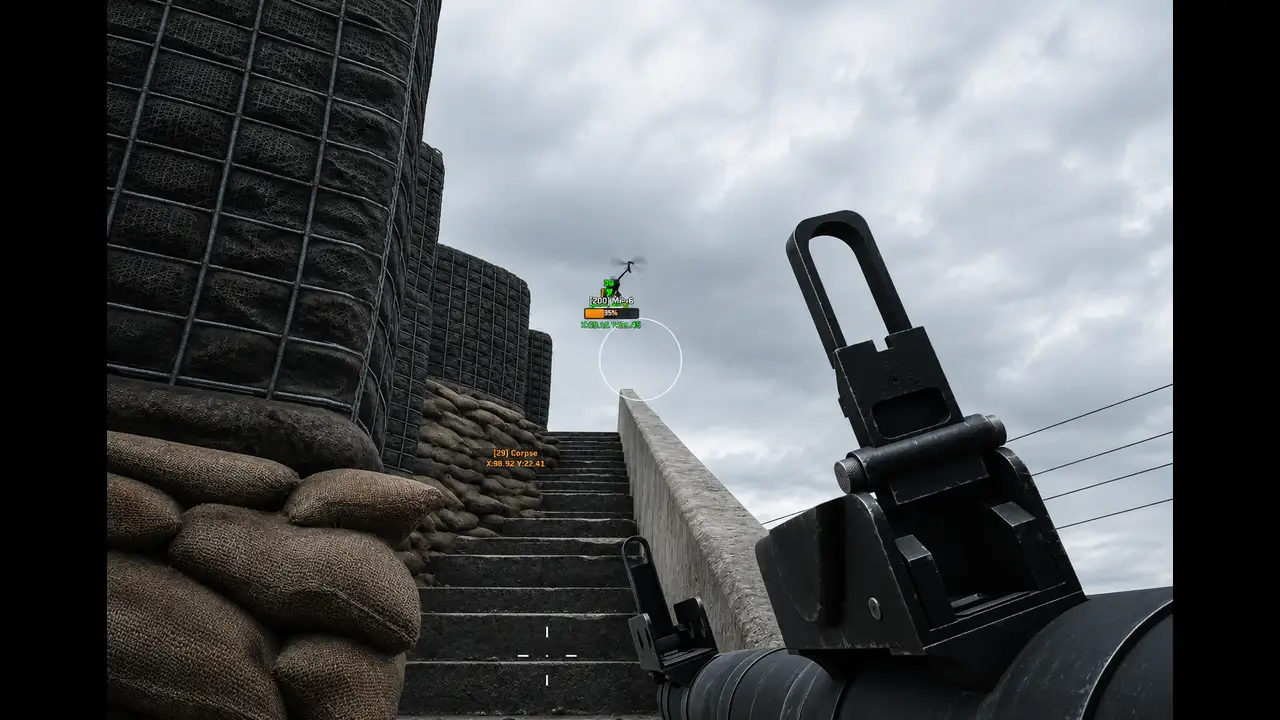
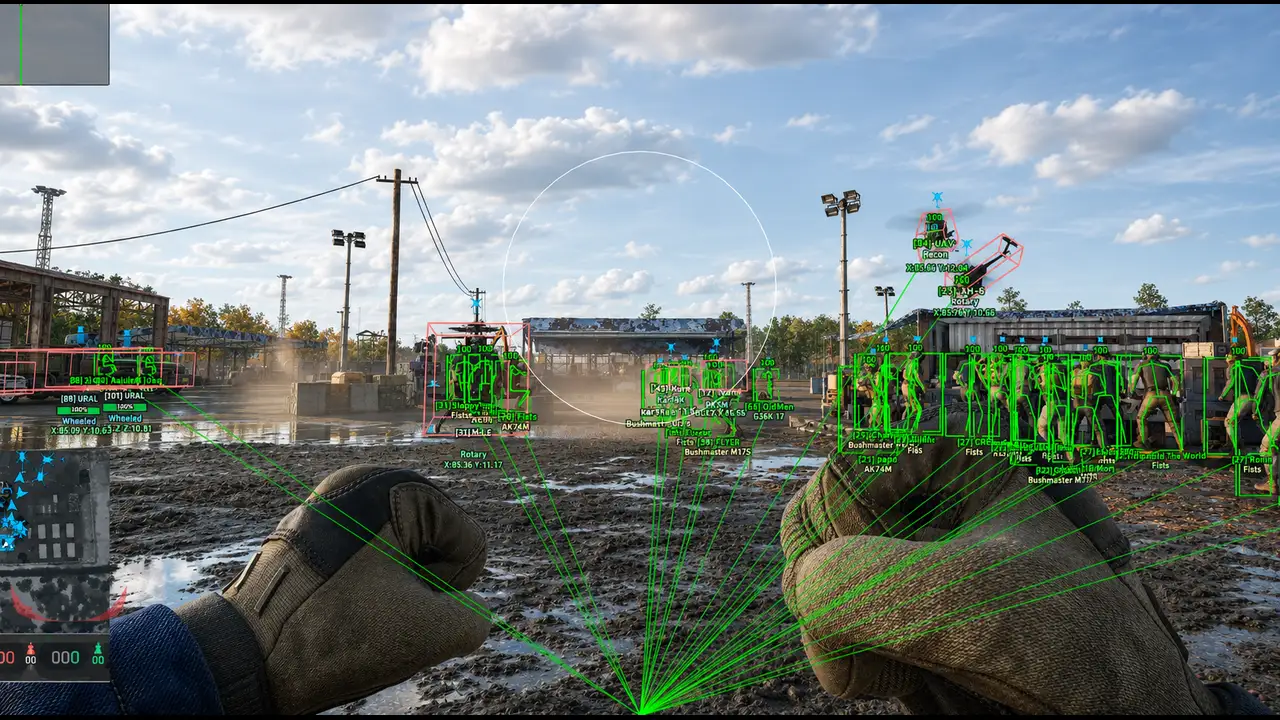
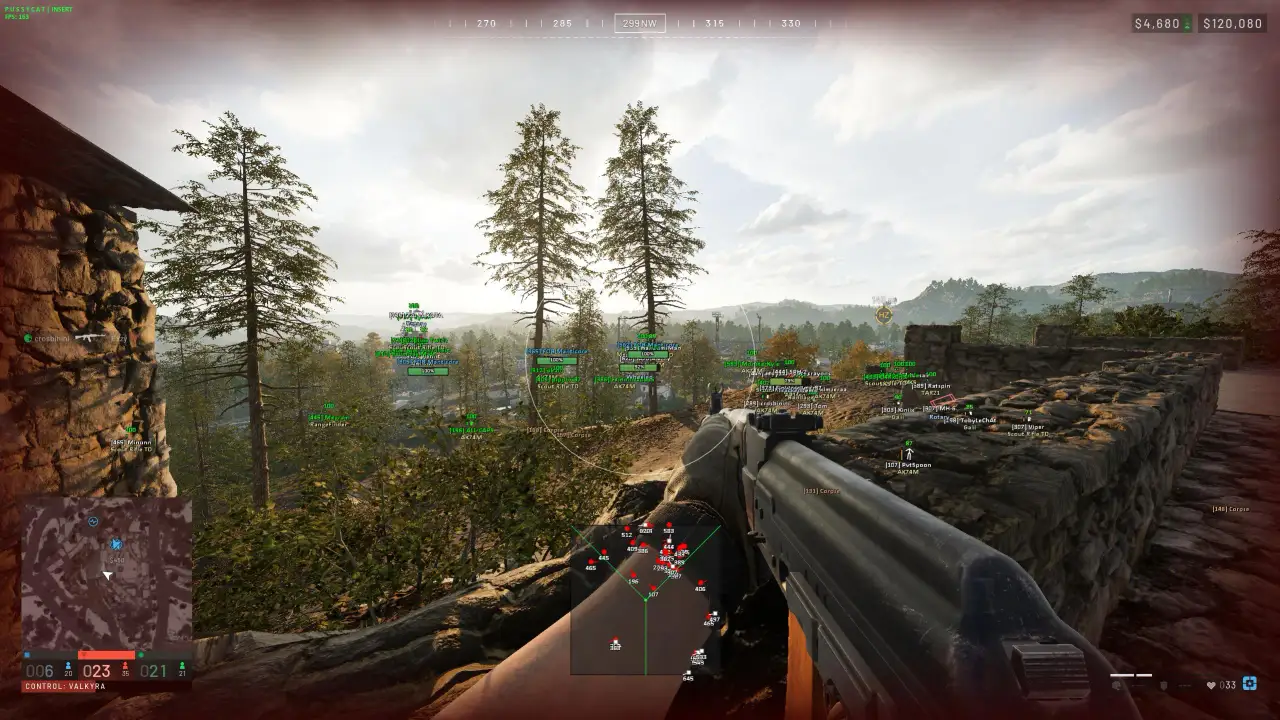
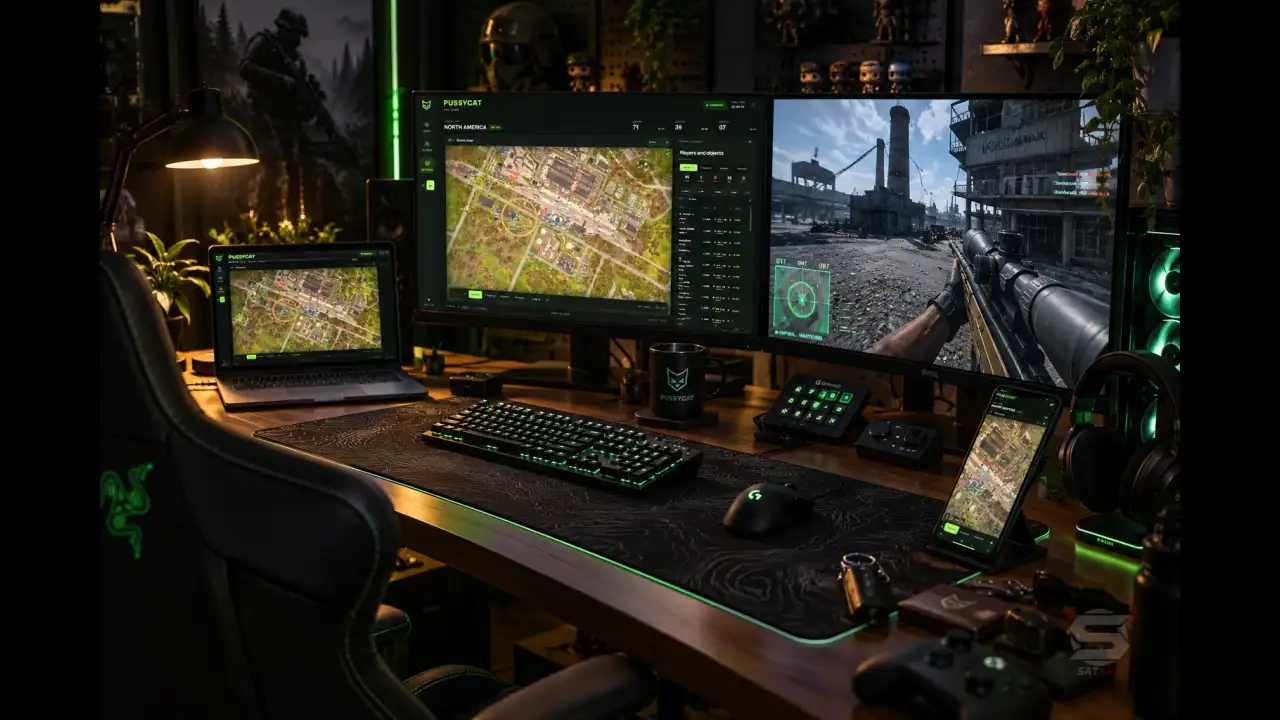
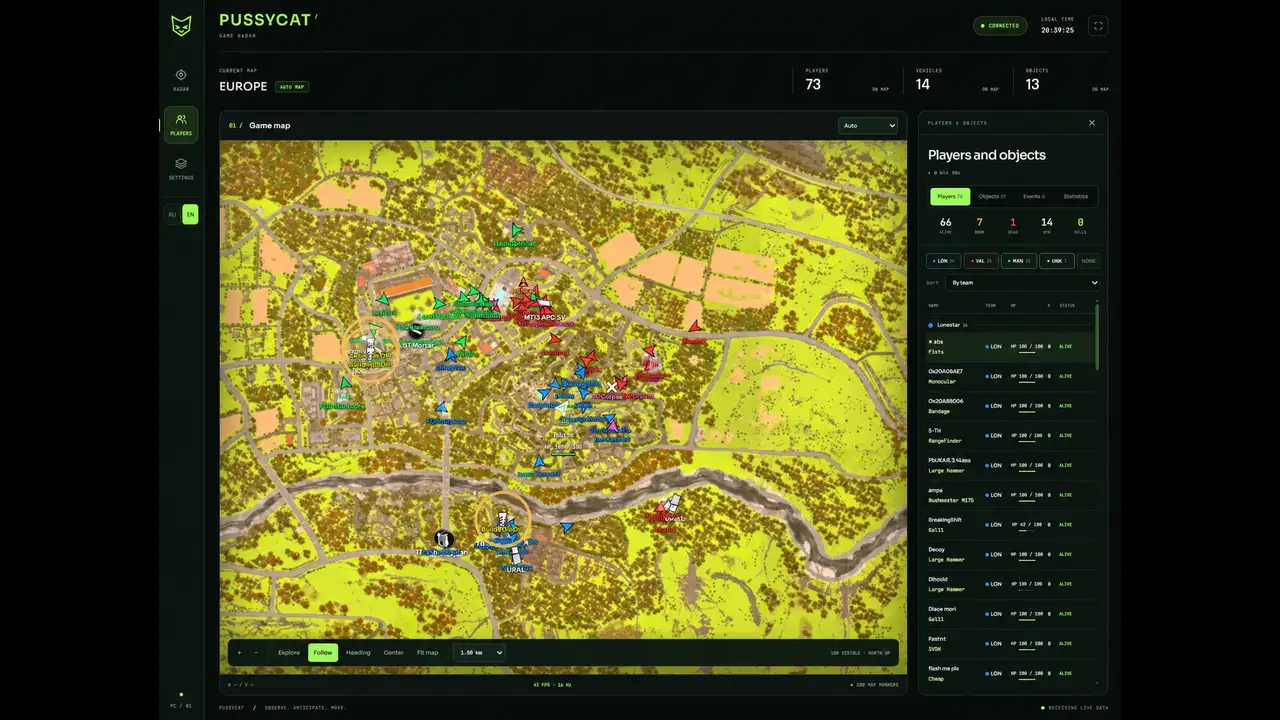
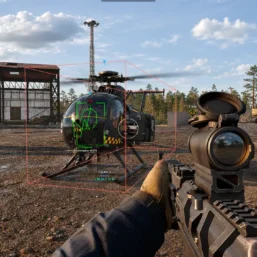
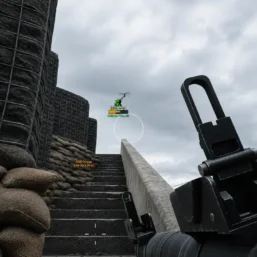
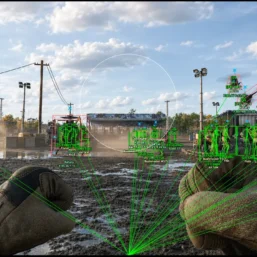
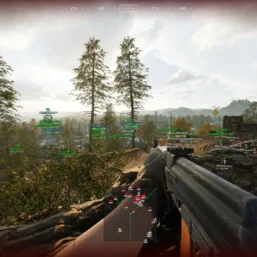
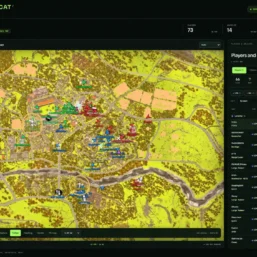
Pussycat for WARDOGS combines configurable a1mbot with detailed player, vehicle and world ESP. Track battlefield objects and vehicles with radar and customize visual options through the menu.
🌐 STATUS:
Full : ✅ Undetected
Radar : ✅ Undetected
- AIM, ESP, RADAR, COLORS, MISC
- Full Features Lists in below description section
System requirements:
Launcher: Steam
Supported processors: Intel, AMD
Video card: Nvidia & AMD
Supported OS: Windows 10, Windows 11
Declaimer: We are not developing this software and we are a premium reselling service. We at ezMod do not advise or condone in any way, shape, or form the usage of any software sell from our shop in online gaming.
👁️🗨️ 21people are viewing this right now
Work in progress! The actual Software may have more/less features than displayed below. We will do our best to update it fully in the near future.
Pussycat – WARDOGS: Full Features List ( For Radar Scroll Down Below)
a1mbot
- Enable – enables automatic aiming at the selected target
- Aim Key – assigns a key to activate the aimbot
- Aim FOV – adjusts the size of the target acquisition area
- Aim Hitbox – selects the priority point to aim at
- Smooth – adjusts aiming smoothness
- Visible Check – the aimbot works only on visible targets
- Max Distance – maximum aimbot operating distance
- Draw FOV – displays the aimbot working area on the screen
- Filled FOV – fills the FOV area with color
Players ESP
- Show Players – enables player display
- Draw Box – displays a box around the player
- Box Style – selects the box style
- Snaplines – displays lines to players
- Skeleton – displays the player’s skeleton
- Names – shows player names
- Weapon – shows the weapon in the player’s hands
- HealthPoints – displays the numerical health value
- HealthBar – displays the player’s health bar
- Ignore Team – ignores players from your team
- Visible Check – highlights players based on their visibility
- Show Knocked – displays knocked players
- Max Distance – maximum player display distance
- Team Color – adjusts ally color
- Enemy Color – adjusts enemy color
- Knocked Color – adjusts knocked player color
World ESP
- Show Objects – enables display of in-game objects
- Corpse / Bags – shows bodies and loot bags
- SPW – shows SPW objects
- Claymore – shows Claymore mines
- AT Mine – shows anti-tank mines
- Explosive Device – shows explosive devices
- FOB – shows FOB points
- Ignore Team Build – ignores your team’s structures
- Healthpoints – displays the numerical durability value of objects
- Healthbar – displays the durability bar of objects
- Buildable Drill – shows placeable drilling rigs
- Objects Max Distance – maximum object display distance
- Map coords – displays object coordinates on the map
- Show Vehicle – enables vehicle display
- 3D Box – displays a 3D box around vehicles
- Healthpoints – displays the numerical durability value of vehicles
- Healthbar – displays the durability bar of vehicles
- Name – shows the vehicle name
- Map coords – displays vehicle coordinates on the map
- Vehicle Max Distance – maximum vehicle display distance
- Ignore Team Vehicle – ignores your team’s vehicles
- Role Vehicle – displays vehicles by type
- Wheeled – shows wheeled vehicles
- Tracked – shows tracked vehicles
- Rotary – shows helicopters
- Airplane – shows airplanes
- Stationary – shows stationary vehicles and objects
- Other – shows other types of vehicles
Other Pussycat WARDOGS Features
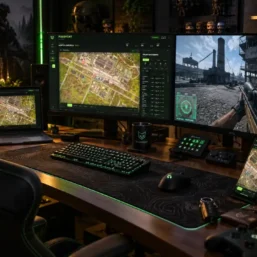
- Radar – enables a 2D radar hack (customizable)
- Crosshair – enables a custom crosshair in the center of the screen
- Thickness – adjusts crosshair thickness
- Size – adjusts crosshair size
- Fullbright – makes the image brighter and removes dark areas
- Enemy Font Size – adjusts text size for enemies
- Item Font Size – adjusts text size for items
- Lock Overlay FPS – limits the overlay FPS
- Save Config – saves the current settings to a config
- Load Config – loads the saved config
- Menu Key – assigns a key to open the menu
- Battle Mode – leave only player ESP enabled or show everything (toggle on/off by bind)
- Localizations – the menu is available in English and Russian
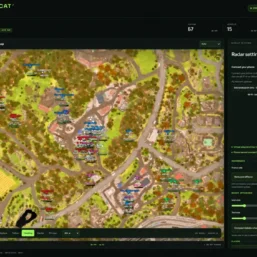
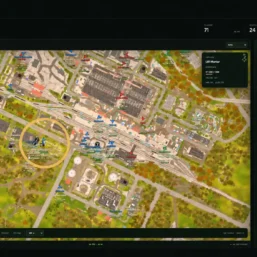
Pussycat – WARDOGS RADAR: Full Features List
Features
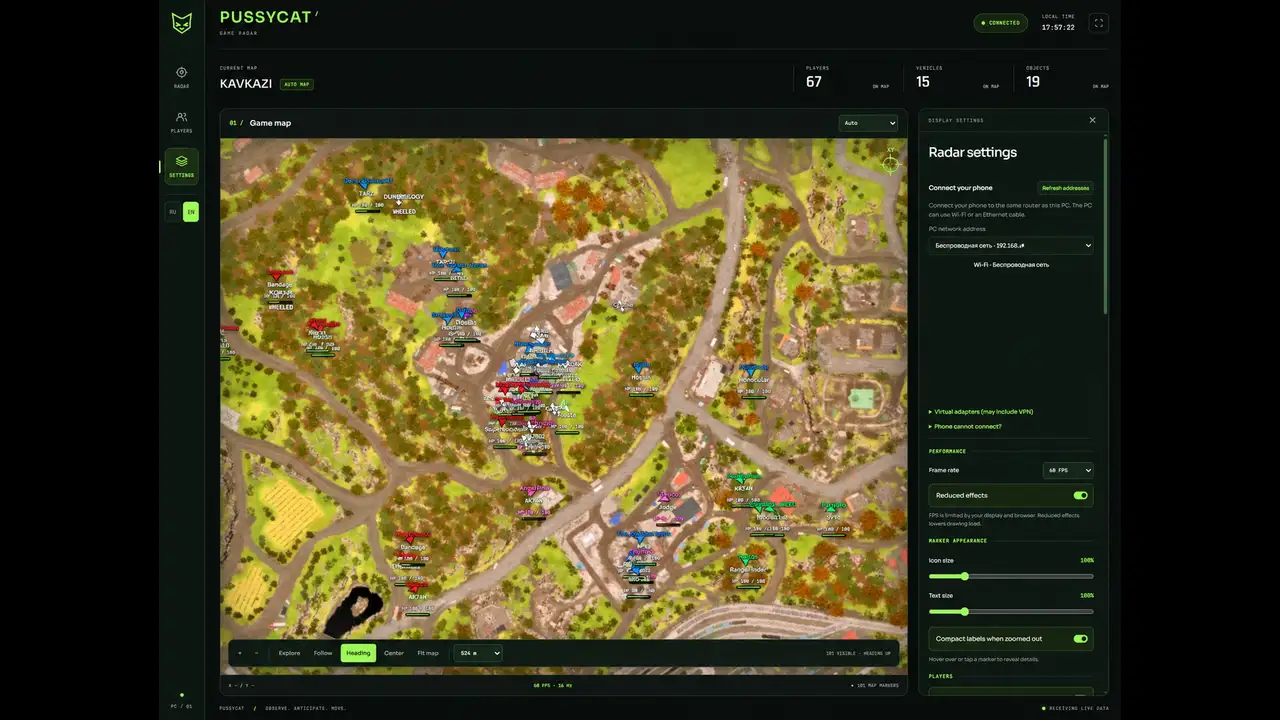
- Web Browser Interface – allows you to use the radar through a browser on a PC, phone, or second monitor
- Open Radar – opens the radar at the press of a button
- Map Selection – manual map selection or automatic detection
- Map Controls – allows you to zoom in and out of the map
- Map Coordinates – displays the coordinates of selected points on the map
- Marker Details – shows additional information about markers when hovering over or clicking on them
- Smooth Movement – provides smooth map movement
Players
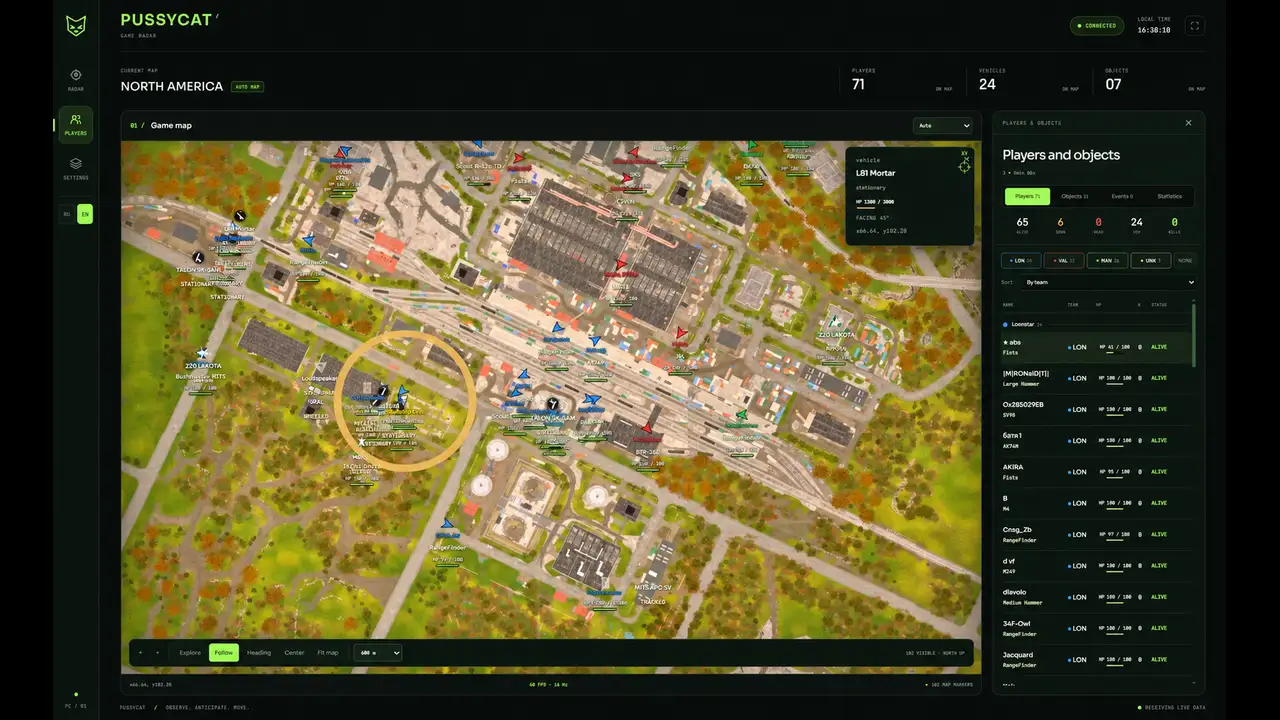
- Show Players – enables or disables the display of players on the map
- Player Visuals – allows displaying nicknames, weapon in hand, and health as a number and a bar
- Ignore Team – hides teammates from the radar
- Show Knocked – allows displaying downed players
- View Direction & Cone – shows the player’s view direction and field of view cone
- Player Identification – distinguishes the local player, teams, and squads
- Player Details – displays the name, weapon, health, view direction, and coordinates of the selected player
- Player List – shows a list of players with team filters
- Team Filters – allows you to quickly select teams to display
- Player Sorting – sorts the player list by team, name, or status
Objects
- Show Objects – enables the display of objects on the map
- Corpse / Bags – shows dead player bodies and bags
- SPW – displays self-propelled artillery
- Mines & Explosives – marks mines and explosive devices
- FOB – displays forward operating bases
- Buildable Drill – shows deployable drilling rigs
- Building Settings – allows you to configure the display of structures and ignore friendly structures
- Object Health – displays object health as a number and a bar
- Object List – shows a list of available objects
- Object Details – displays the name and coordinates of the selected object
Vehicles
- Show Vehicle – enables or disables vehicle display
- Model Names & Icons – shows vehicle model names and icons
- Vehicle Roles – allows filtering vehicles by class
- Vehicle Details – displays the vehicle’s name, type, health, movement direction, and coordinates
Pussycat Radar WARDOGS Settings
- Map Display – allows you to configure the display of object names, view direction, and field of view cone on the map
- Black Text Background – enables a black background under text labels
- Marker Appearance – adjusts icon and text size, as well as label compactness when zooming out the map
- Reveal Details on Hover / Tap – shows detailed information about markers when hovering or tapping
- Performance – allows you to choose the interface refresh rate (30, 60, 120 FPS, or Auto)
- Reduced Effects – reduces the number of visual effects to improve performance
- Network Adapter Selection – allows you to select a network adapter for connection
- QR Code – provides a QR code for quick connection from another device
- Connection Link – displays a link to connect to the radar
- Connection Instructions – shows connection instructions
- Language – allows switching the interface language between English and Russian
- Auto Save Settings – automatically saves radar settings
- Auto Load Settings – automatically loads saved settings on startup
| Choose License: | 1 Day, 7 Days, 30 Days, 1 Day Radar, 7 Days Radar, 30 Days Radar |
|---|
Brand
Pussycat
Only logged in customers who have purchased this product may leave a review.
Related products

From 3.99$

From 2.50$

From 3.99$
From 3.90$

From 2.99$

Reviews
There are no reviews yet.